First steps · 5 of 5 2 min read
Add an expense
Record each cost as it happens — repairs, insurance, utilities, fees — and keep the receipt with it. At year-end everything is already sorted by property and category.
- 1
Tap Add, then Expense
Tap the orange Add button and choose Expense 1.
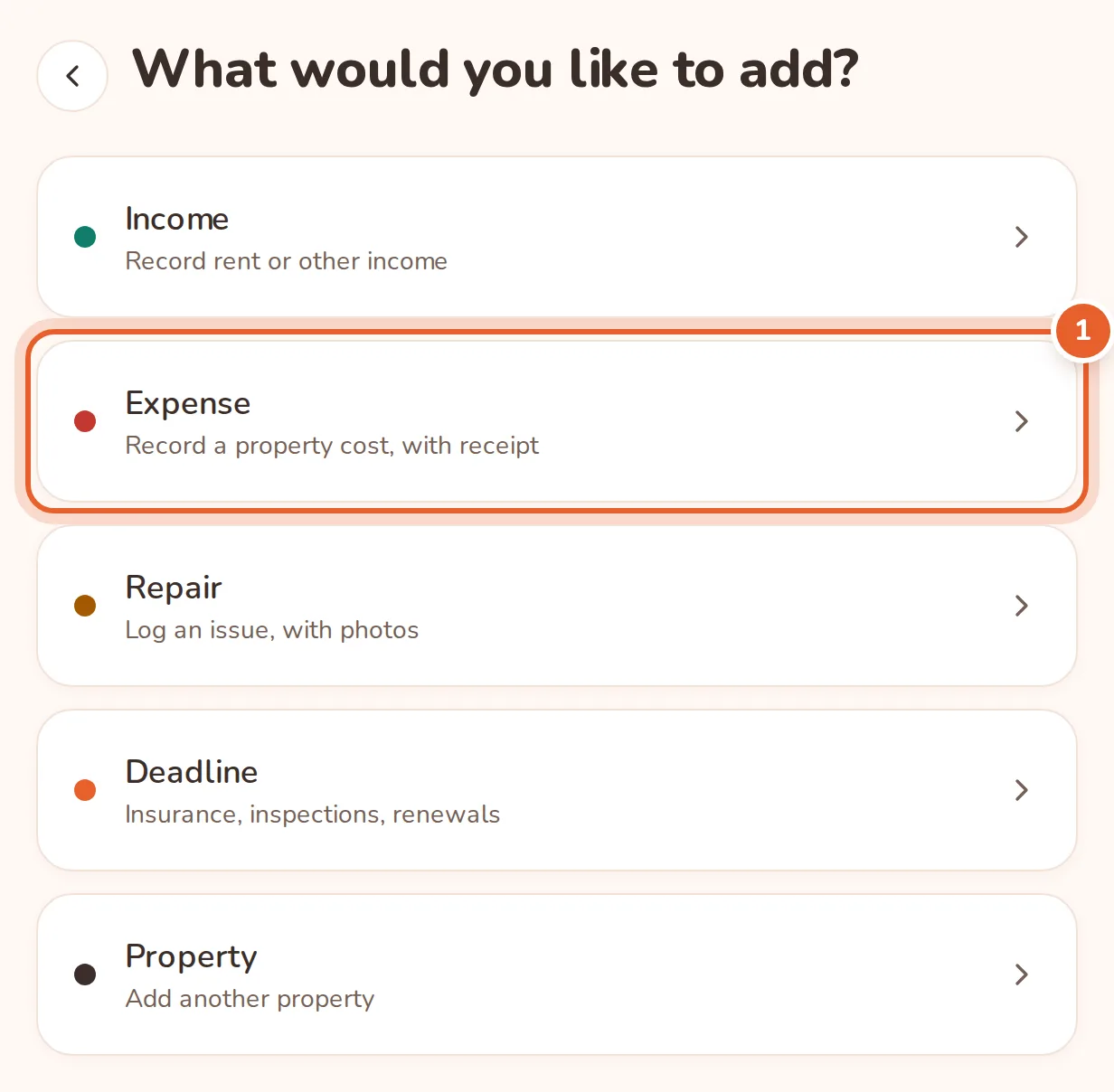
The Add screen with Expense marked - 2
Add the receipt
Tap Receipt (photo or PDF) 1. On a phone you can take a photo straight away; on a computer, choose the file.
Where receipt reading is available, BnB247 fills in the supplier, date, amount and category from the receipt for you. Always check them before you save.
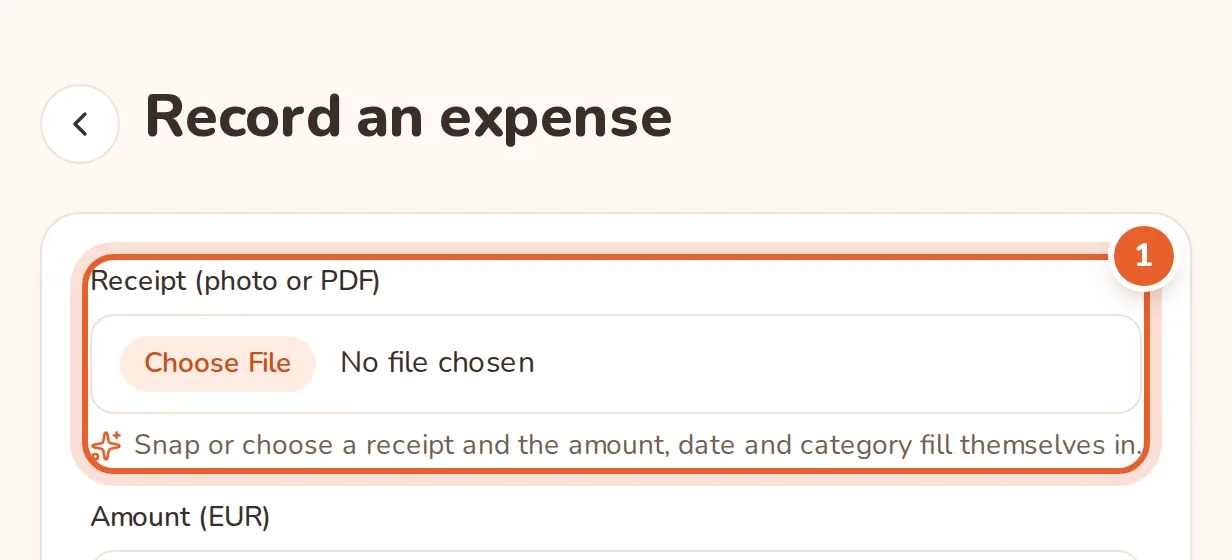
The receipt field at the top of the expense form - 3
Fill in the details and save
Enter the amount 1, choose the property 2 — or one unit in it — and pick a category 3 such as Repairs, Insurance or Utilities.
Check the date and how you paid, add a short note like “Plumber — kitchen tap”, and tap Save expense.
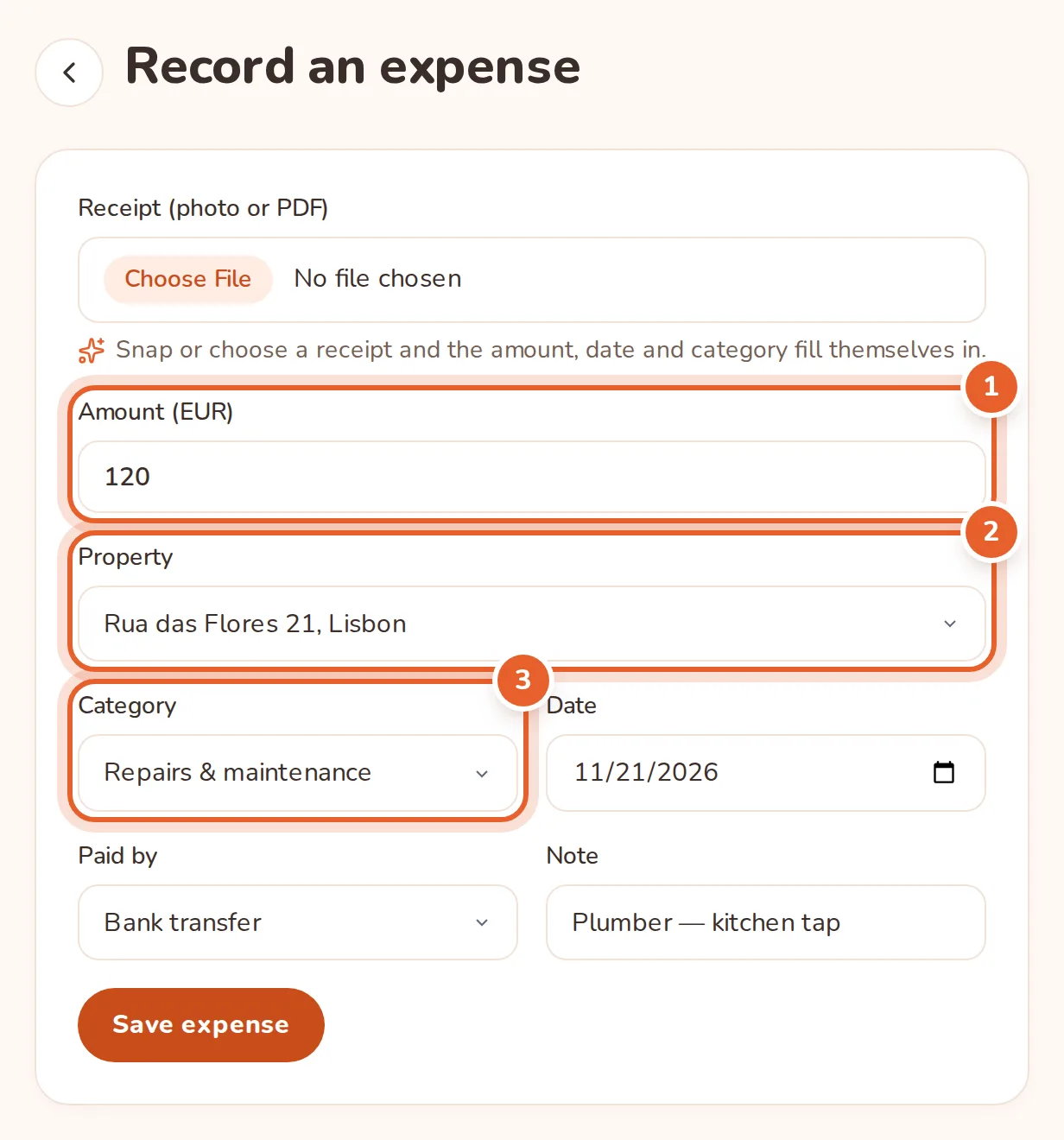
The expense form with amount, property, category, date and note Tip: Other income, like a late fee or a deposit you kept? Use Add → Income in the same way.
- 4
Find it again
Your expense is now listed in Money 1, on the property's page and in Reports under its category. Tap it to change it or to open the receipt.
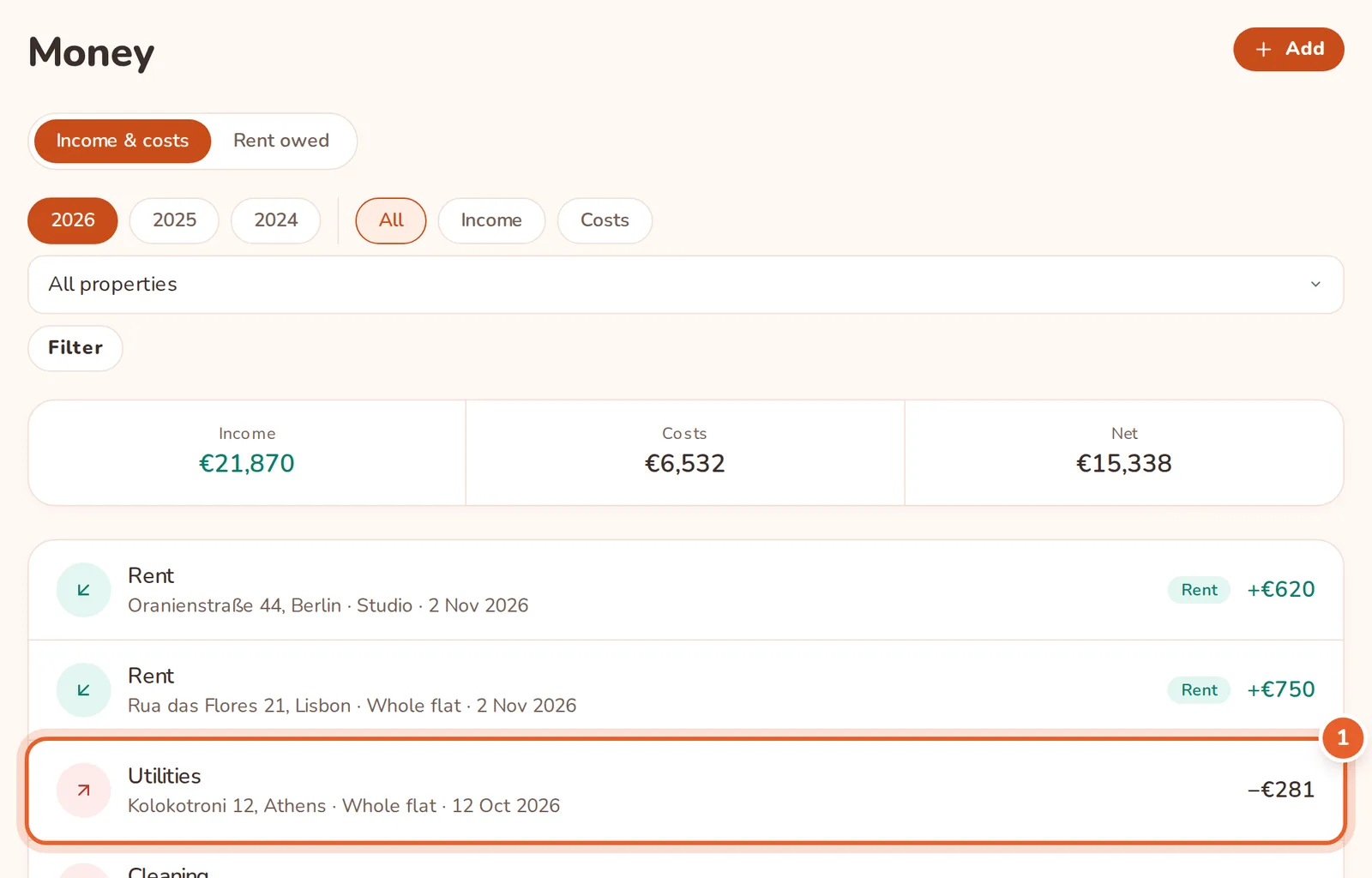
The Money page listing recent income and costs
Still stuck?
Email us and a real person will help — usually within one working day.